How to Screen Record on iPhone with Sound: The Ultimate Guide (2026)
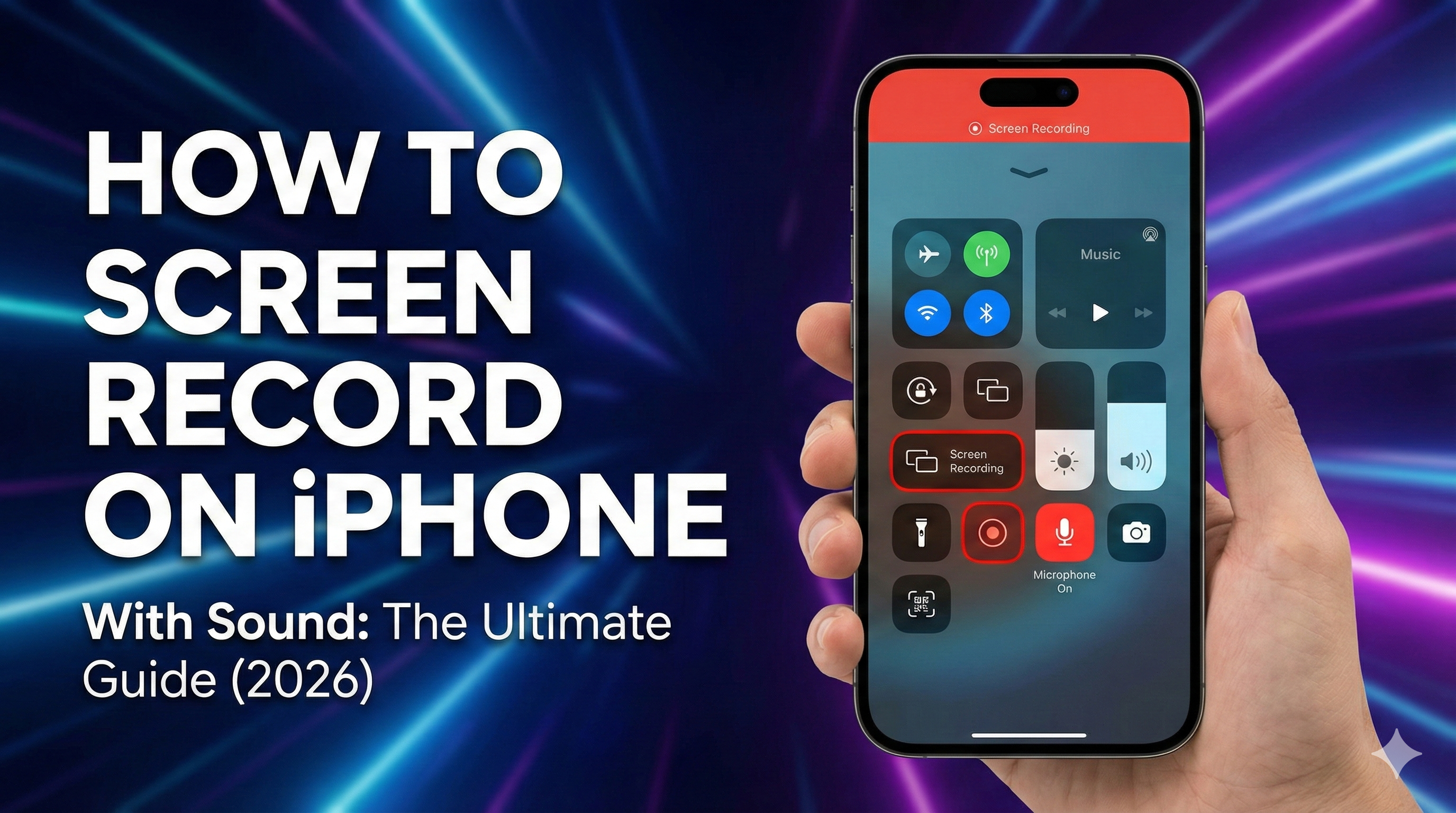
You want to show a friend how to use an app, or capture a funny bug in a game. The easiest way is to use the iPhone's built-in Screen Recording feature.
But out of the box, the recording button might be missing from your Control Center. And often, people record videos with no sound.
In this guide, we'll fix all of that.
Step 1: Add the Record Button
If you don't see the circle icon in your Control Center, you need to enable it first.
- Open Settings > Control Center.
- Scroll down to find Screen Recording.
- Tap the green (+) button next to it.
Now, swipe down from the top-right corner of your screen. You should see the record button (it looks like a solid circle inside a ring).
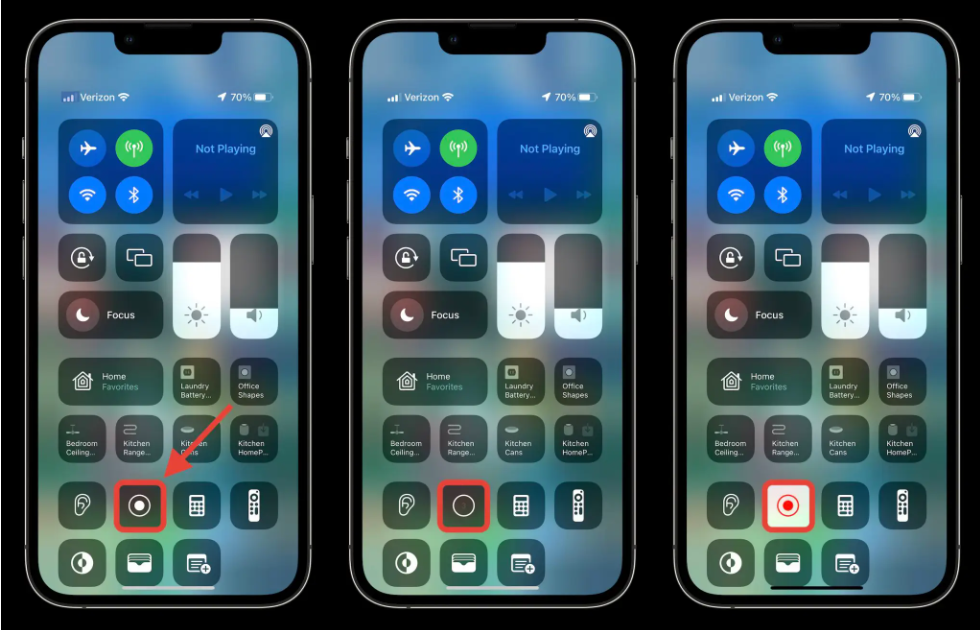
Step 2: How to Record with Sound (Microphone)
This is the most common mistake. By default, iPhone only records system sounds (the app's music), but NOT your voice.
To record your voice commentary:
- Open Control Center.
- Long press (hold down) the Screen Recording button.
- Tap the Microphone icon at the bottom to turn it ON (it will turn red).
- Tap Start Recording.
Step 3: Stop Recording
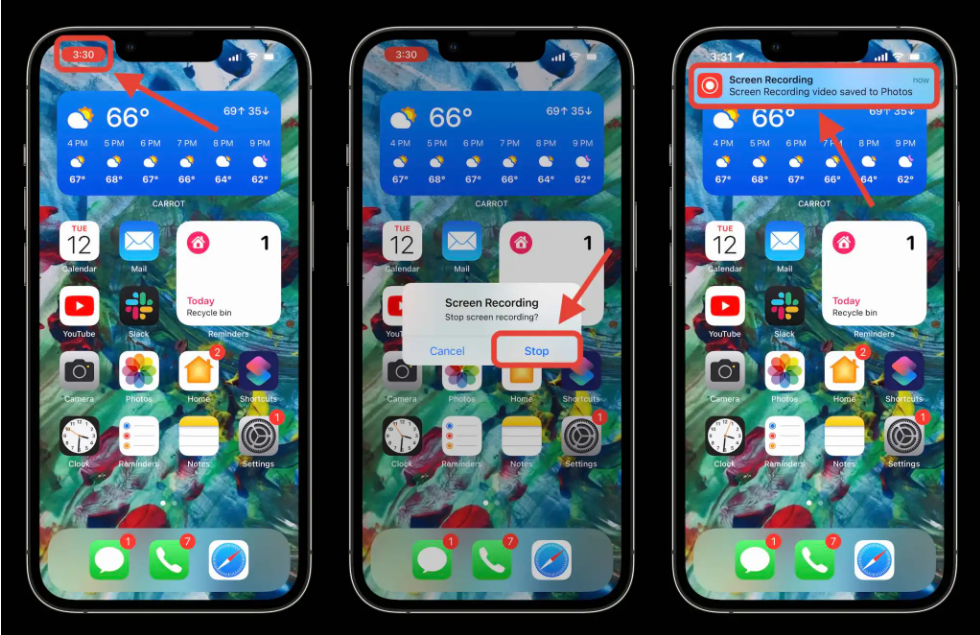
To stop, simply tap the red clock in the top-left corner of your screen, then tap Stop. The video will be saved to your Photos app.
Pro Tip: When NOT to Screen Record
Screen recording is perfect for games and videos, but it is terrible for saving text or documents.
Why? Because video files are huge. A 1-minute video can take up 100MB+ of space. If you use video to record a receipt, a letter, or homework, you are wasting your iPhone's storage.
The Better Alternative: If you need to capture physical documents or paper, use a scanner instead of a camera video.
Try Instant iPhone Scanner directly in your browser.
- It creates PDFs, not heavy videos.
- It saves space: A PDF is usually only 0.2MB (vs 100MB for video).
- It's clearer: Much easier to read than a shaky video.
Use the right tool for the job: Screen Record for motion, Scan for information.
Summary
- Add Screen Recording in Settings.
- Long press the button to enable the Microphone.
- Save storage space: Don't film paper documents, scan them with scanoniphone.com.