How to Scan on iPhone Without Apps: The Fastest Way (2026 Guide)
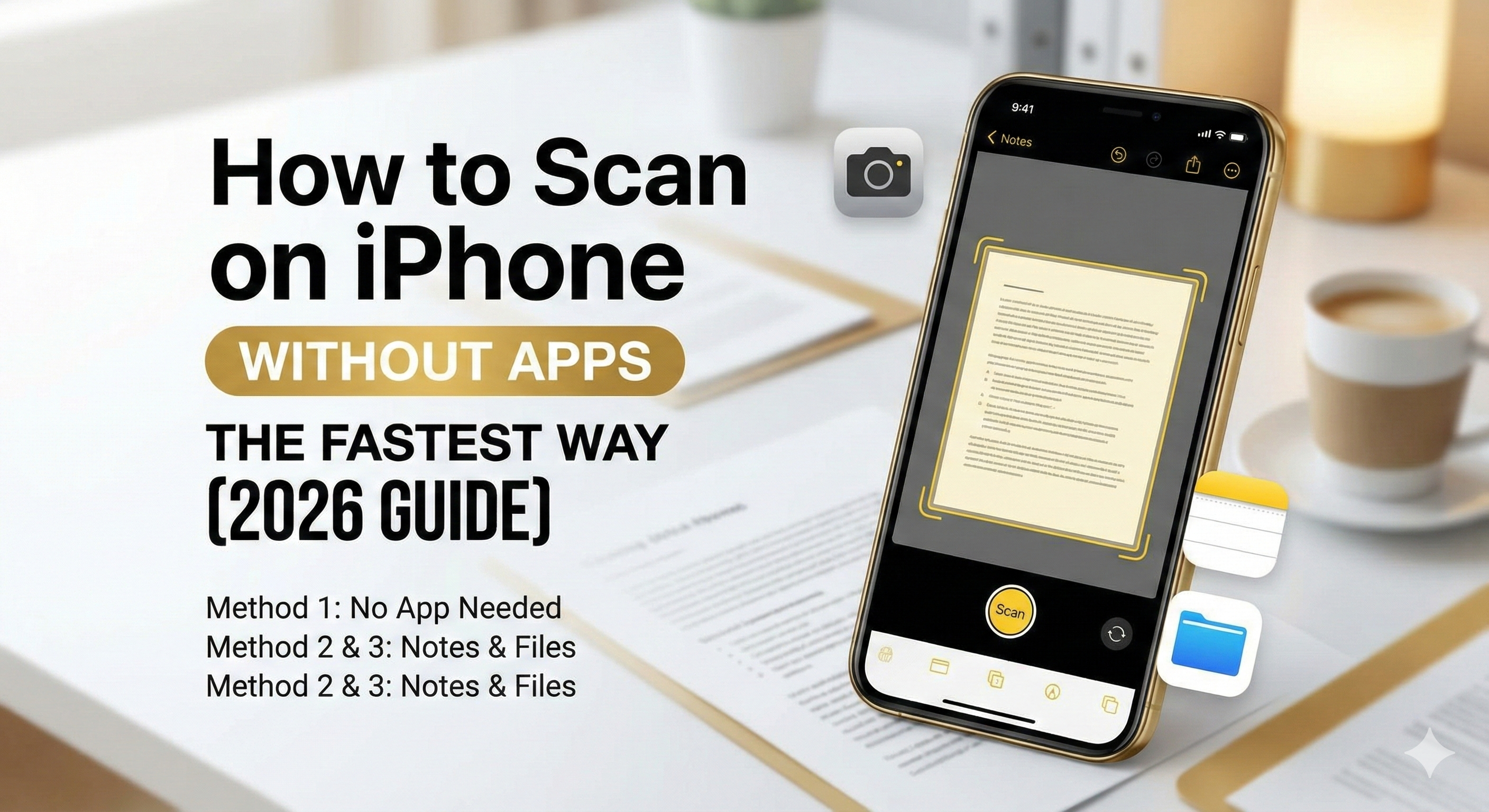
You have a document in front of you. You need to turn it into a PDF and email it right now.
But here is the problem:
- You don't want to download a 200MB app just to scan one page.
- You don't want to create an account or watch a 30-second ad.
- You know there is a scanner hidden somewhere in your iPhone, but you can never remember if it's in Notes, Files, or Mail.
You are not alone. Millions of iPhone users search for this every month.
In this guide, I will show you 3 ways to scan documents on your iPhone. We will start with the fastest method (3 seconds) that requires no app installation, and then cover the official Apple methods.
Method 1: The Fastest Way (No App Needed)
If you want to scan immediately without searching through menus, the best way is to use a Web-Based Scanner. This tool runs directly in your Safari browser and uses your iPhone's camera to generate PDFs locally.
Why use this method?
- Speed: Ready in 3 seconds.
- Privacy: Images are processed locally on your phone (Zero server upload).
- Free: No watermarks, no sign-ups.
How to do it:
- Scroll up to the top of this page (or go to our Home Page).
- Tap the big blue "Start Scanning" button.
- Take a photo of your document.
- Tap "Download PDF".
That's it. It works exactly like a native app, but without the download.
Method 2: Using the Apple Notes App
If you prefer using Apple's built-in tools and don't mind a few extra taps, the Notes app has a powerful scanner hidden inside it. This is great if you want to save the scan into your iCloud notes for later.
Step-by-Step Guide:
- Open the Notes app on your iPhone.
- Create a New Note (tap the icon in the bottom right corner).
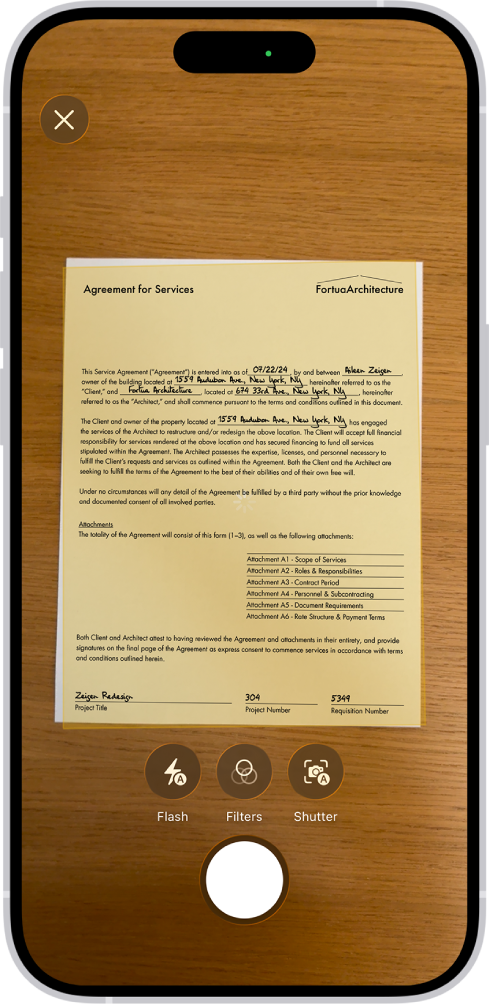
- Tap the Camera Icon 📷 in the toolbar above the keyboard.
- Select "Scan Documents" from the pop-up menu.
- Point your camera at the document. It will try to auto-capture.
- Tap "Save" to finish.
The Downside: The scanned PDF is now trapped inside a Note. To share it, you have to open the note, tap the PDF, tap the Share icon, and then choose where to send it.
Method 3: Using the Files App
Did you know the Files app can also scan? This is the best method if you want to save the PDF directly to a specific folder in your iCloud Drive or On My iPhone.
How to do it:
- Open the Files app.
- Go to the folder where you want to save the scan (e.g., "Downloads").
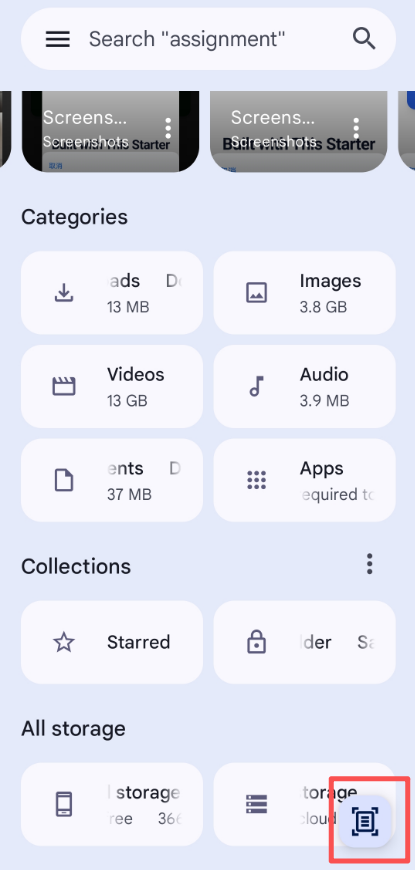
- Tap the three dots (...) in the top right corner.
- Select "Scan Documents".
- Scan your pages and tap Save.
Comparison: Which Method is Best for You?
Still not sure? Here is a quick breakdown.
| Feature | Instant Web Scanner (Method 1) | Apple Notes (Method 2) | App Store Apps (e.g. CamScanner) |
|---|---|---|---|
| Time to Scan | ⚡️ 3 Seconds | 🐢 20 Seconds | 🐌 2 Minutes (Download + Login) |
| App Install | ❌ No | ❌ No | ✅ Yes (Huge size) |
| Sign-up | ❌ No | ❌ No | ✅ Usually Required |
| Privacy | ✅ 100% Local | ✅ iCloud | ⚠️ Uploads to Cloud |
| Best For | Quick, One-off Scans | Organizing Notes | Heavy Office Use |
Frequently Asked Questions (FAQ)
Where is the scanner on my iPhone?
There is no standalone "Scanner" app icon. Apple hides the scanner feature inside the Notes app, the Files app, and sometimes the Mail app. This is why many users prefer bookmarking a web scanner for easier access.
Is it safe to scan documents online?
It depends on the tool. Our Instant Scanner is 100% safe because it processes images locally in your browser. Your private documents (contracts, IDs) never leave your phone and are never uploaded to any server.
How do I scan on iPhone without an app?
Simply open Safari and visit our Instant iPhone Scanner. It uses modern web technology to access your camera and generate PDFs instantly, saving you from installing bloatware.